
@Voice Auto Plugin
Control @Voice playback from the Android Auto screen
Current version: latest available
Control @Voice playback from the Android Auto screen
Current version: latest available
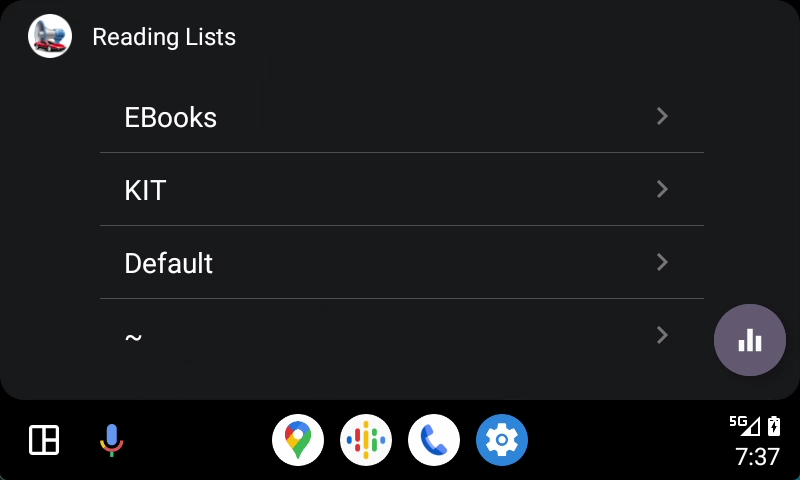
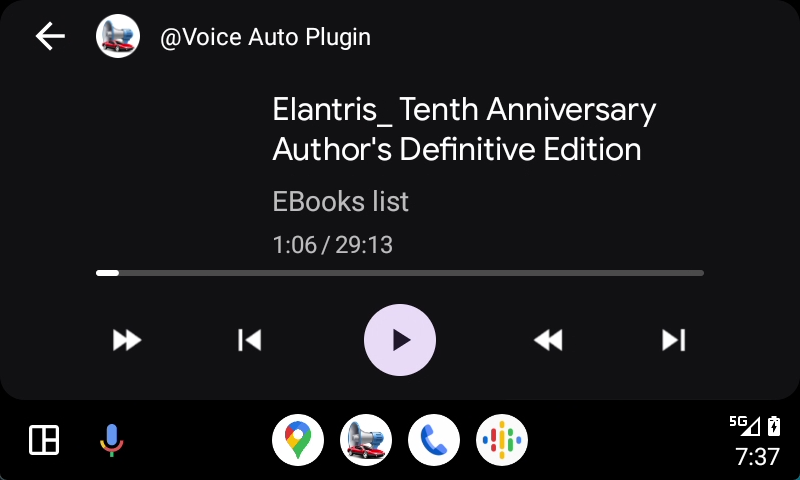
@Voice Auto Plugin is an optional component of @Voice Aloud Reader. It lets you select content from your @Voice Reading Lists and control playback—start, pause, forward, and reverse—from the Android Auto screen in your car. @Voice Aloud Reader 40.3.9 or newer must also be installed on your phone.
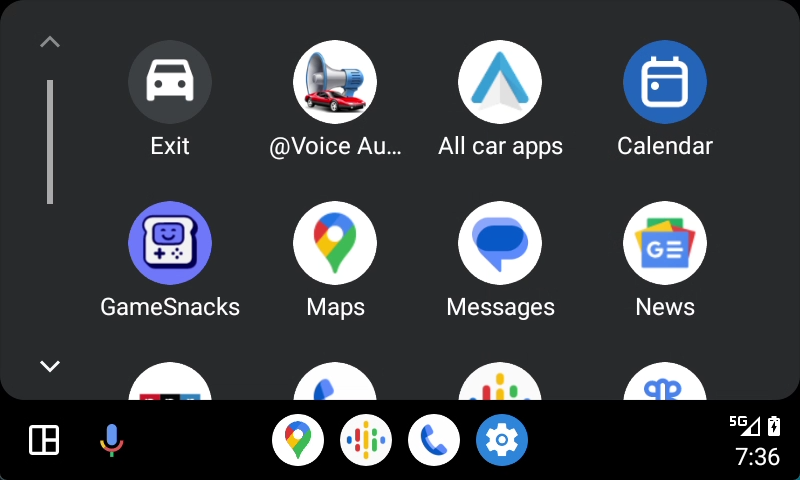
After installing the APK, you must enable Android Auto developer mode and its Unknown sources option on your phone. Until you do, the plugin will not appear on your car screen. Please read every step below before downloading.
Do not confuse the two settings. "Allow from this source" lets your browser or file manager install the APK. Android Auto's separate Developer settings > Unknown sources option lets the installed plugin appear on the car screen. These are not the phone's ordinary Developer options.
Download the plugin now, then follow the setup steps above on your phone.
When the download finishes, open Downloads and tap AvarAuto.apk. Android may ask you to allow the app opening the APK (such as Files or your browser) to install apps.
Android Auto compatible apps are normally installed through Google Play. Google rejected this plugin because its Android Auto media policy accepts supported recorded or streamed media, but not an app that creates audio from text with text-to-speech. The plugin is therefore distributed directly from Hyperionics as an APK.

Greg Kochaniak, Hyperionics
* Fixed cold-start connections after a phone or Android Auto restart, so lists and
ebooks load instead of showing an endless spinner.
* Selecting content in the car now starts speech without first unlocking the phone
or opening @Voice.
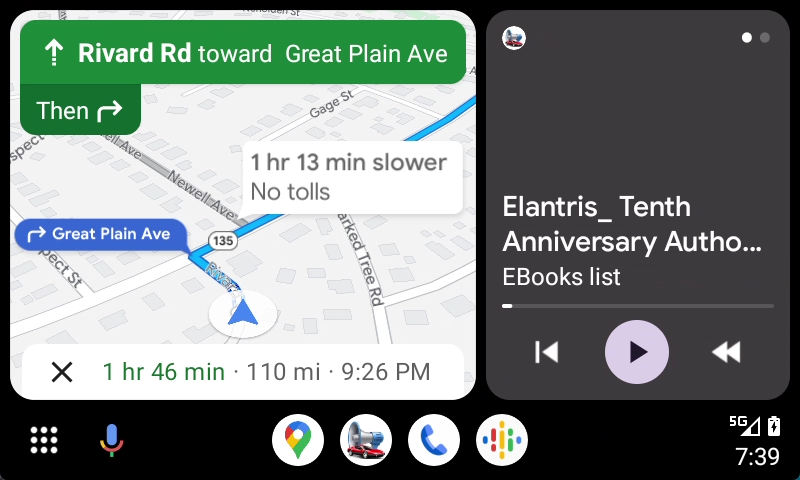
* Improved switching between the full and split Android Auto panels. Requires @Voice
ver. 40.3.9 or newer.
* Fixed the "Unlock phone to use @Voice Aloud Reader" problem when switching between the full and split Android Auto panels.
* Play in the car continues what you were reading. Pressing Play on the head unit or
steering wheel—including after using another audio app—now resumes your current
article. Previously it could start an article you finished long ago, which also
replaced the article open on your phone.
* "Next" at the end of a list no longer jumps back to the oldest article. The
same applies when an article finishes by itself, and to "Previous" at the start
of a list.
* Lists show what you read most recently first, so current articles are at the top of
the car screen instead of the bottom.
* @Voice starts by itself when you select it in the car—you do not need to open it
on the phone first.
* Browsing your lists in the car no longer stops speech.
* The car screen no longer remains stuck waiting for @Voice; it reports what went
wrong instead of showing an empty or frozen screen.
* "Play @Voice" by voice with Google Assistant now works, and the plugin no longer
disappears from the car's app list after a pause.
* Added handling of hardware media buttons Next and Previous on the car console. Requires @Voice ver. 28.1.0 or newer.
* Fixed a small memory leak.
* Changed the order of the navigation buttons at the bottom. In split mode, the two buttons visible beside Play/Pause are now the most useful: << on the left jumps to the previous sentence, and >| on the right jumps to the next article or chapter.
* Added instructions to the phone screen for cases where the @Voice Auto Plugin icon does not appear in Android Auto.
* Initial release, well tested in my own car.